Working a Case Offline — Sonar Analysis at Remote Launch Points
Recovery work happens at lakes with no LTE. Here is what offline sonar analysis has to actually do, what the field laptop needs, and how HumVision handles licensing and multi-operator sync when the launch point has no signal.
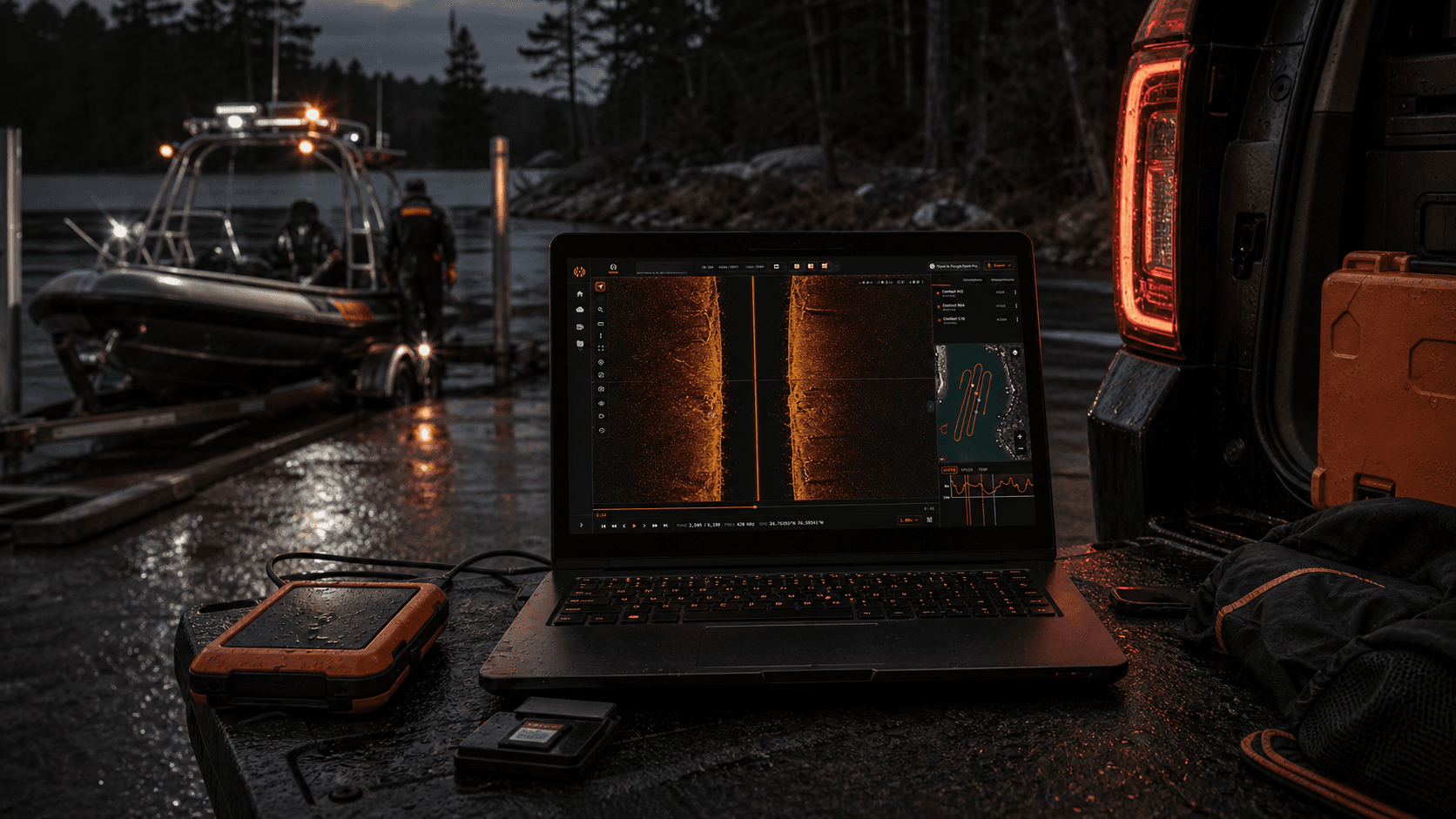
The boat ramp is the office
The case does not get worked at a desk. It gets worked on the tailgate of a Tahoe at the end of a forest service road, on a folding camp table next to the trailer, on the bench seat of a dive truck while the team is still pulling drysuits on. The cell bars dropped off ten miles back. The hotspot icon is spinning and going nowhere. The recording you need to review is sitting on a microSD card in your hand, and the family is standing on the bank waiting for an answer.
That is the environment offline sonar analysis has to work in. Not a conference room. A boat ramp. Recovery work happens at lakes with no service, so the full analysis runs on your machine with the network off. If the tool needs to phone home before it lets you scrub a Side Imaging channel, the tool is the wrong tool. This post lays out what HumVision actually does at a remote launch: licensing, hardware loadout, the full review loop, and the multi-operator workflow that a department needs to count on.
The short version: it works at the ramp. Here is the long version.
What "offline" actually has to mean
Software vendors say "works offline" the way restaurants say "fresh." It means whatever they want it to mean. Before you trust a piece of software with an active recovery, walk it through the failure modes that have burned field teams before.
- Initial sign-in requires internet. The first launch on a new laptop demands a login round-trip. Fine in the office. Not fine at the launch point when the install was rushed the night before deployment.
- Updates push silently and refuse to run an old build. You open the app at the ramp and it tells you an update is required before you can continue. There is no update available because there is no signal. You are now reviewing nothing.
- Map tiles are streamed. The base map is gorgeous in the demo. At the lake it is a gray checkerboard because every tile is being pulled from a CDN that does not exist out here.
- Exports require an authenticated upload step. You can mark contacts all day. The moment you try to hand a KML to the dive team's tablet, the app insists on uploading to its cloud first.
- License validation pings on every launch. A two-second check that takes thirty seconds at no bars, then fails, then refuses to open the project.
HumVision was built with all five of those failure modes treated as bugs. The full analysis (scrub, mark, GPS smooth, mosaic, export) does not require an internet connection. Map context for mosaic work uses cached basemaps you can prep on the way out the door. There is no upload step gating the export. License validation is a 30-day window, not a per-launch handshake.
That is what offline sonar analysis has to mean: open the laptop, open the project, finish the case.
The HumVision license model — 30-day check-in
Procurement can write it this plainly: HumVision requires internet for initial sign-in and a license check-in every 30 days; between check-ins, sonar review, contact marking, mosaic generation, and exports run locally without internet.
The HumVision license checks in every 30 days when the machine has an internet connection. Between check-ins, the application runs fully offline. There is no per-launch ping, no telemetry call required to open a project, no background validation that fails when WiFi is off.
If a deployment is expected to exceed 30 days off-grid (long lake searches, multi-week recovery operations on a reservoir without coverage, a temporary station up a dirt road), email hello@gethumvision.com before deploying and the check-in window extends. That is not a marketing line. That is how it works. The team that needs the extension emails, we extend the window for that machine, and the field laptop keeps opening cases.
What gets validated during a check-in: the license is current, the tier is correct, the operator count for Team and Department tiers is in bounds. What does not get validated: the contents of your project, the recordings you have loaded, the contacts you have marked, the KMLs you have exported. None of your case data leaves the machine during license check-in. It is a license handshake, not a data upload.
One-time Pro licenses follow the same model with one difference: a Pro license keeps the app working through a generous grace window even when the license eventually moves out of support, which matters for the agencies that ask about vendor lockout risk during procurement. More on that in a minute.
Field laptop loadout
Hardware advice from someone who has run sonar review at the launch, not from a spec sheet writer.
RAM: 16 GB minimum. This is the HumVision requirement, not a recommendation. Side Imaging recordings get large and the renderer wants memory. 32 GB is better if the budget is there, especially if the operator runs other software during review.
GPU: discrete, from the last five years. Integrated graphics will technically run HumVision. They will also make mosaic generation feel like waiting for a fax. A modest discrete card from the last five model generations is the difference between a thirty-second mosaic and a four-minute mosaic.
Storage: 256 GB SSD, at least 100 GB free. Side imaging recordings are big. A long search day fills a card and a card fills a directory and a directory fills a drive. SSD only — spinning disks make scrubbing painful. Keep 100 GB free for working space.
Ruggedness over brand. The laptop is going to ride in a vehicle that bounces on logging roads. It will sit on a tailgate in the rain. It will get sand in the hinge. A semi-rugged business-class laptop with a real keyboard outlasts a thin consumer ultrabook by years in this work. Pick by spec and build, not by logo.
Power: extra battery or a vehicle inverter. A full review at the ramp can take two to four hours. A laptop on its own battery will not finish that on a winter morning when the cold is eating the cell. Run a 300-watt inverter off the truck or carry a spare battery rated for the platform.
Optional: sun-readable display or external monitor. A standard laptop screen at noon on open water is unreadable. A 1000-nit panel helps. So does a sunshade and angling the screen away from glare. For dock-side work, a small portable monitor over USB-C gives the operator real screen area for the side imaging field laptop setup.
A full offline review at the launch
This is the workflow with WiFi off. Not a demo workflow. The real one.
Pull the .son, .dat, and .idx files off the Humminbird unit. Helix, Solix, MEGA: HumVision reads all three. Use the SD card directly into the laptop reader, or a USB cable from the head unit if the team prefers. Drop the recording folder onto the laptop's working drive.
Open HumVision. Open or create the case project for this operation. Import the recording. The app indexes the files locally, no network call. Scrub the Side Imaging channel at the speed the operator wants. Mark contacts as they show up. Tag each one with a short note: vehicle profile, anomaly, debris, follow-up. The GPS track from the recording smooths locally using on-machine processing, with no API call required, no cloud handoff, no waiting on a server. Generate the mosaic. The mosaic builds against the cached basemap on disk.
Export the contacts to KML. The KML lands on the laptop's disk. Hand it off to the dive team's tablet by the path that works at your launch: USB stick, direct WiFi between devices with a local network, a Bluetooth file transfer for small files, or a cellular hotspot from whichever phone has a bar once someone walks to higher ground. The handoff is a file transfer, not a cloud sync. The dive team gets coordinates either way.
The whole loop (pull, scrub, mark, smooth, mosaic, export, handoff) happens with the laptop's WiFi off. Say that to procurement plainly. That is humminbird review without internet, done by the team standing at the boat ramp, exactly the way SAR sonar review at the launch is supposed to work.
For teams currently running this loop across three or four separate tools, the workflow consolidation post walks through how each step collapses into one application.
Multi-operator offline — Department tier and the local sync question
The honest answer to the obvious question.
When a department runs multiple operators, the question is always the same: how does the shared workspace work when nobody has signal? Cloud sync is a cloud feature. It needs connectivity. There is no way around physics.
What does work in the field: each operator works on a local copy of the shared project. Contacts marked on operator A's laptop live in that laptop's project file. When any operator returns to a connection (back at the station, the hotel, a gas station with WiFi, a phone hotspot once a bar appears), the workspace syncs. Changes from each operator merge into the shared project. Conflicts surface with a clear UI for the lead to resolve. Nobody loses work and nobody is blocked at the ramp.
That is the offline GIS sonar workflow built into Department tier. The tier is $499 a year, flat. Unlimited operators inside the agency. Department-wide workspace with case-level permissions. Custom branding for the agency on exports. It is built for the sheriff's dive units, fire department water divisions, and SAR teams running this scenario every operation. The price is flat on purpose: no per-seat math, no surprises when a new operator joins the team mid-year.
What grant writers ask
Procurement and grant writers ask the same questions every time, so here are the answers in two sentences each.
Recurring cost? Flat per-year pricing for Team and Department, no per-seat creep. A Department subscription at $499 covers every operator on the roster for the year with no add-on billing.
Vendor lockout risk? A one-time Pro license keeps working through extended license expiry windows so a team is never stranded mid-case. Department and Team subscriptions include the same in-field grace behavior so a missed renewal does not kill an active recovery.
Reliability evidence? The 30-day free trial is the real test on your gear at your launch points. If it does not work for the team, walk away with no charge.
Take it to the next deployment
The case does not wait for a signal. The team that brings people home cannot have its software fail at the ramp. HumVision is built so the analysis runs on the laptop, the license check-in is a 30-day window with an extension by email when a deployment runs long, and the multi-operator workflow holds together for the agencies that need it.
If a department is ready to put it on field laptops and run it through a real operation, start a free trial on Department. Every tier includes a 30-day free trial: install it, take it to the next deployment, and if it does not earn its place in the truck, walk away with no charge. Built for the teams who bring people home.
FAQ
What happens if my 30-day license check-in is overdue?
The app enters a grace period that allows continued review for several more days past the 30-day mark. A clear warning surfaces in the UI so the operator knows a check-in is due. Full lockout only happens after the license has been extended-overdue for a meaningful stretch, and even then a single online launch clears it. For deployments that will exceed the window on purpose, email hello@gethumvision.com before heading out and the window extends.
Can we deploy to a laptop without admin rights?
The standard installer needs admin rights once, at install time. After install the app runs without elevated privileges, which is what most IT policies require for day-to-day use by operators. Department-tier customers can request an MSI package for IT-managed rollouts across a fleet of agency laptops, which lets the department's IT team push HumVision through their existing deployment tooling.
Does it work on cellular hotspot when we do have signal?
Yes. The license check-in only needs a working connection: cellular hotspot, station WiFi, hotel WiFi, a tethered phone, any of it works. The check-in is small and finishes quickly even on a weak connection. Once the check-in completes the 30-day window resets and the laptop goes back to running fully offline for the next month of field work.
In This Article
Share
Try HumVision Department
Real recording. Real case. 30 days. No charge if it doesn't fit.
Start your free trialMore from the workbench
Jul 13, 2026 · 7 min read
Humminbird
Can a Humminbird Fish Finder Be Used for Underwater Search and Recovery?
A practical look at when Humminbird Side Imaging fits an underwater search, what the recording can show, and where training and target confirmation still matter.
Jul 13, 2026 · 9 min read
Target Verification
How to Verify a Suspected Sonar Target Before Sending Divers
A review procedure for checking a suspected sonar contact across channels, measurements, GPS data, repeat passes, and the operational handoff.
Jul 13, 2026 · 9 min read
Side Imaging
What Submerged Vehicles Look Like on Side-Imaging Sonar
How vehicle geometry, orientation, acoustic shadows, bottom type, and partial burial affect a side-imaging sonar return during underwater search and recovery.